You probably know the classic ultrawide problem: your rev counter vanishes behind the steering wheel every time you turn in. Redline? Gone. Shift lights? Invisible. So you shift by ear, which works great. Until you’re trying to run a 911 GT3 R on sound cues alone.
That’s the thing nobody tells you about ultrawide monitors before you buy one. A big curved screen looks impressive on your desk. Put it in the wrong spot, though, and your entire HUD (speedo, position indicator, all of it) disappears behind your wheel’s spokes. My take, and I’ll stand on this: most people buy the right monitor and then park it in the wrong place. That’s a waste of good money.
Why Alignment Matters More Than You Think
Let’s be honest. Sim racing is a game of repetition. Your brain learns exactly when to brake, shift, and turn in. Based on visual cues that sit in the same spot every single time. Shift those cues a few centimeters and your subconscious navigation system gets confused. Mildly annoying? Sure. Enough to wreck your lap times? Absolutely.
Then there’s immersion. The whole point of a curved ultrawide is that it wraps your field of view, just like a real car does. But if half your dashboard overlay hides behind your wheel because the monitor sits too low or too far off-center, you’ve basically bought an expensive cinema experience and sabotaged it yourself.
Here’s the core of this piece: it’s not about which monitor you buy. It’s about where you put it relative to your steering wheel, your seating position, and your eyes. Three variables. No complicated math, just something almost nobody actually takes the time to sort out.
The Three Variables: Distance, Height, Tilt
Distance from your eyes
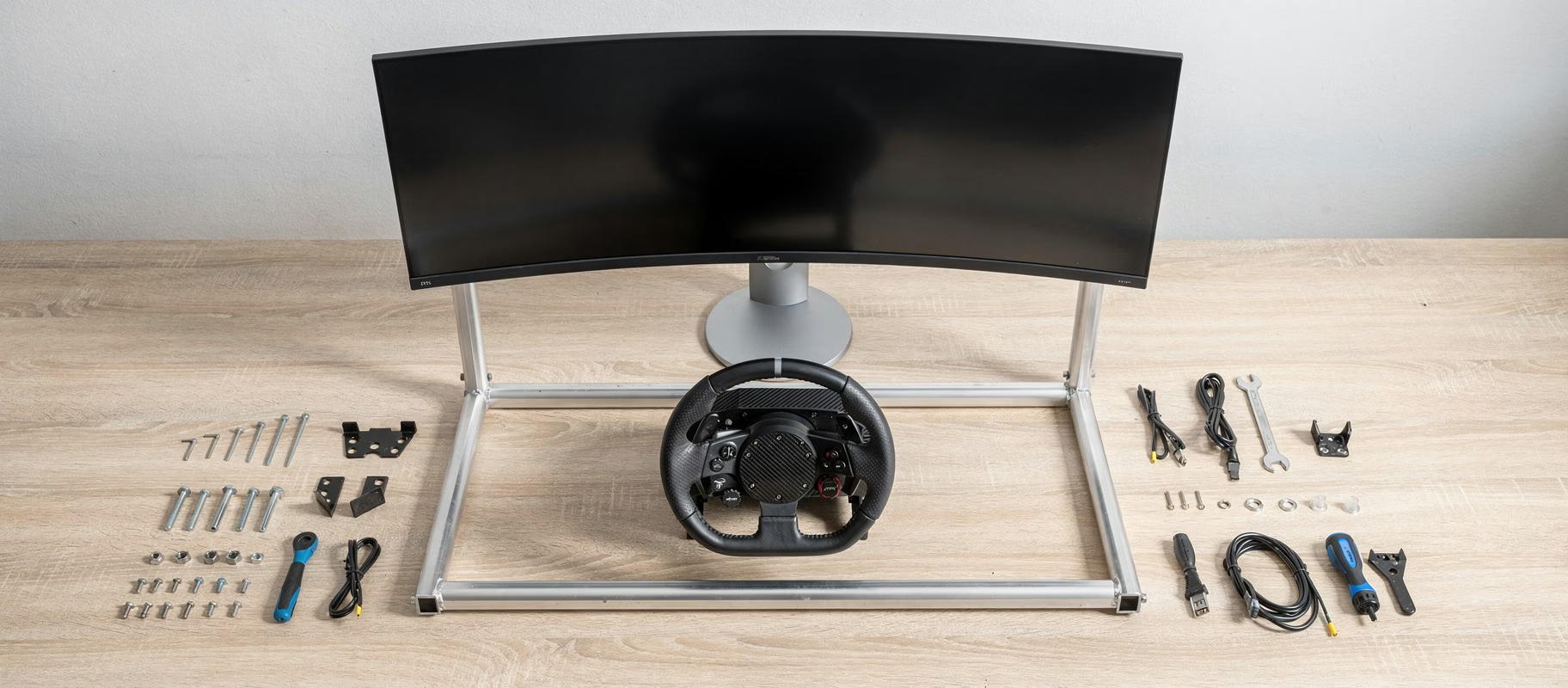
For a 34-inch ultrawide like the Gigabyte G34WQCP, the rule of thumb is 70 to 90 centimeters between your eyes and the screen. Closer than that and you’ll be craning your neck to see the edges. Farther away and the curve stops doing anything useful. You’re just staring at a flat panel that happens to be bent.
The curve itself isn’t a gimmick, by the way. Most 34-inch racing/gaming monitors, including the Gigabyte G34WQCP and Philips 346E2CUAE, use a 1500R curve, which roughly follows the natural arc of your peripheral vision at the right distance. Sit too far back and the edges start to distort. Park it at 110 centimeters and it looks more like a funhouse mirror than a racing dashboard.
Height: the most underrated factor
This is where most people mess up. The horizon in your sim should land roughly at eye level, maybe a touch lower. Not higher. If your monitor sits too high, you end up constantly looking up, and your lower HUD elements (speedo, gear indicator, position) disappear completely behind the wheel and the car’s dash.
Monitors with an adjustable stand, like the Gigabyte G34WQCP or the Philips 346E2CUAE, are your best friend here. Height adjustability isn’t a nice extra. For sim racing, it’s a requirement. A monitor arm works too, as long as you pick one rated to hold the weight of a curved 34-inch panel without slowly sagging after a week.
Tilt and rotation
Most people never tilt their monitor at all. That’s a mistake. A slight backward tilt at the top, angled toward your face, brings the upper part of the screen (usually where your track position or delta timer lives) straight into your line of sight instead of glancing off at an angle. A few degrees. That’s it.
Curved Ultrawide: Friend Or Foe Of Your Steering Wheel
Now the actual question everyone’s asking: how does that curve relate to your steering wheel? This is exactly where the community question comes from, and fair enough.
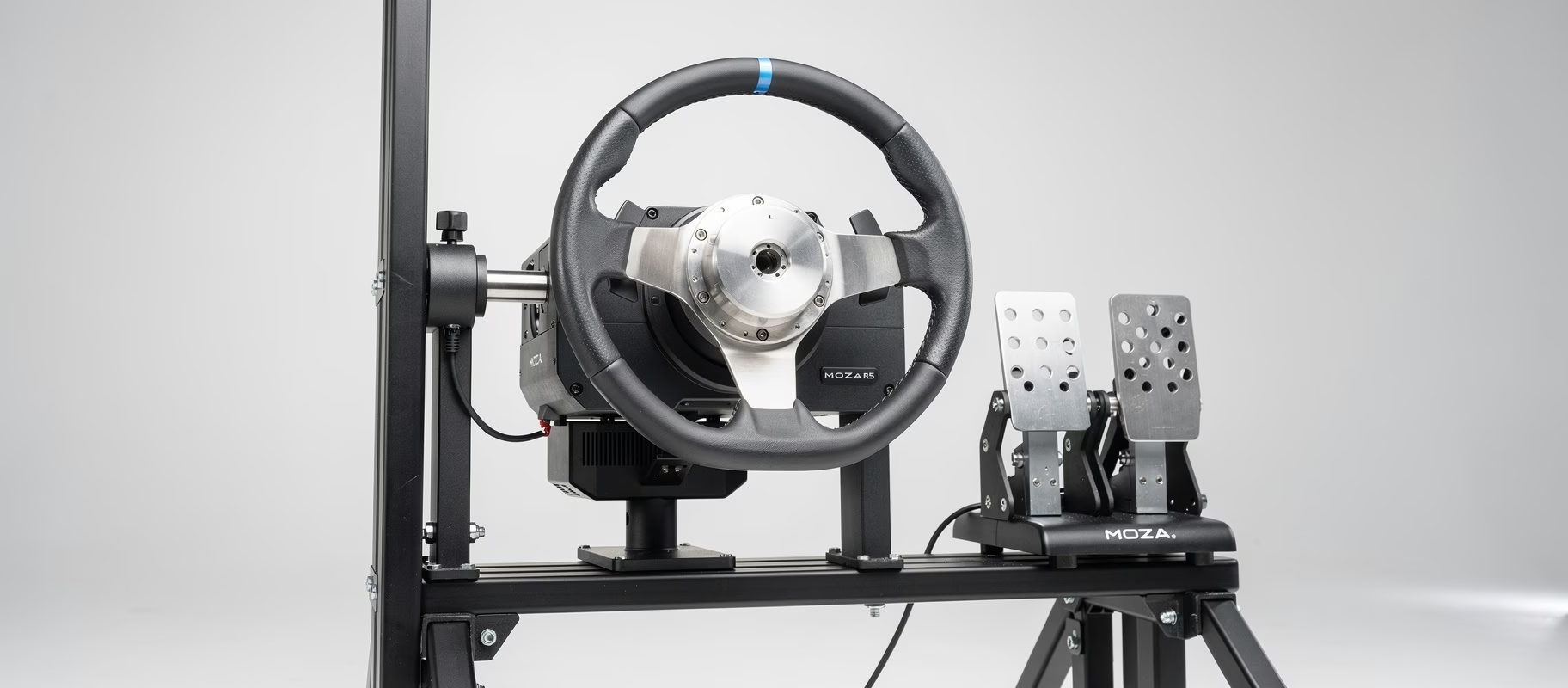
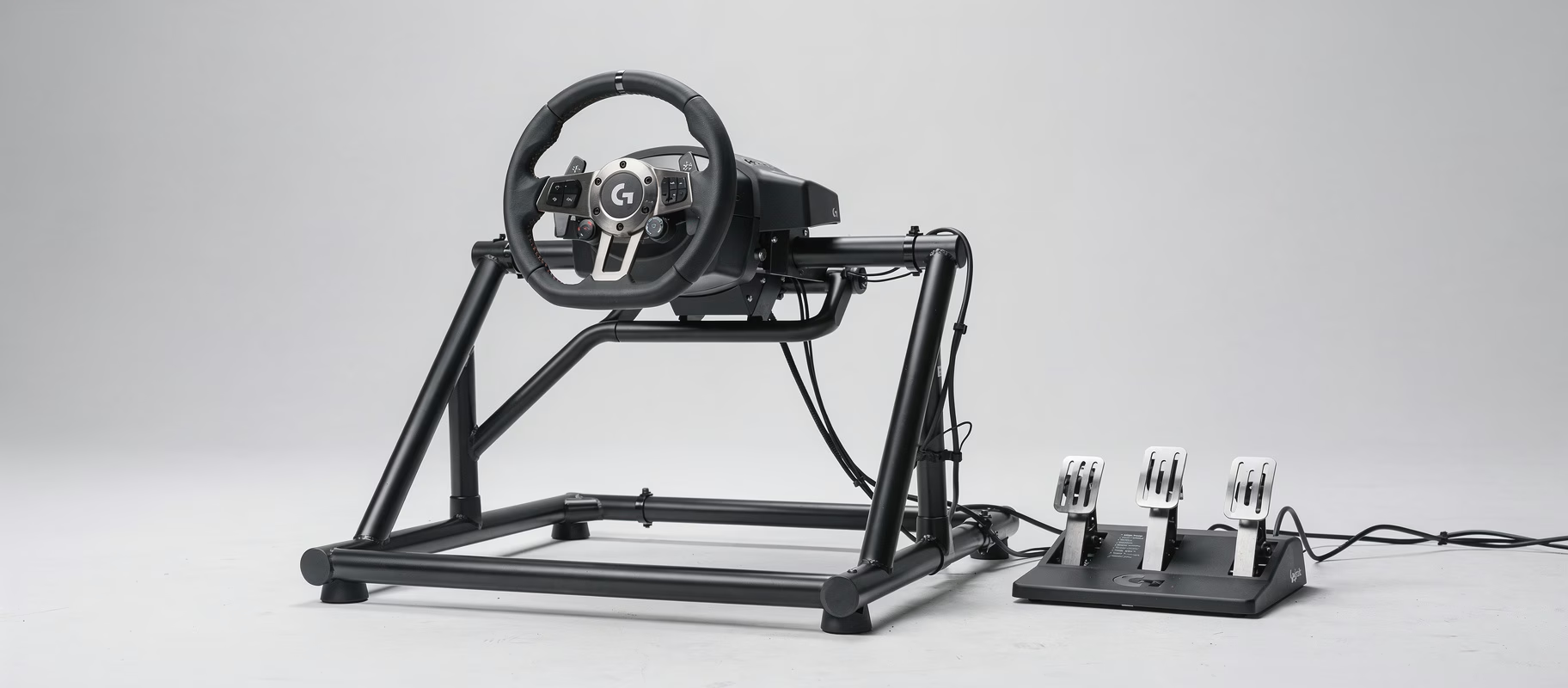
Your steering wheel, say a Fanatec CSL Elite Porsche Vision GT, sits physically right in front of you, roughly 30 to 40 centimeters from your chest. Your monitor sits behind that, 70 to 90 centimeters from your eyes. Which means: your wheel will always cover part of the screen. That’s unavoidable, and honestly, not a problem. In a real car you don’t see your whole dash through the steering wheel either.
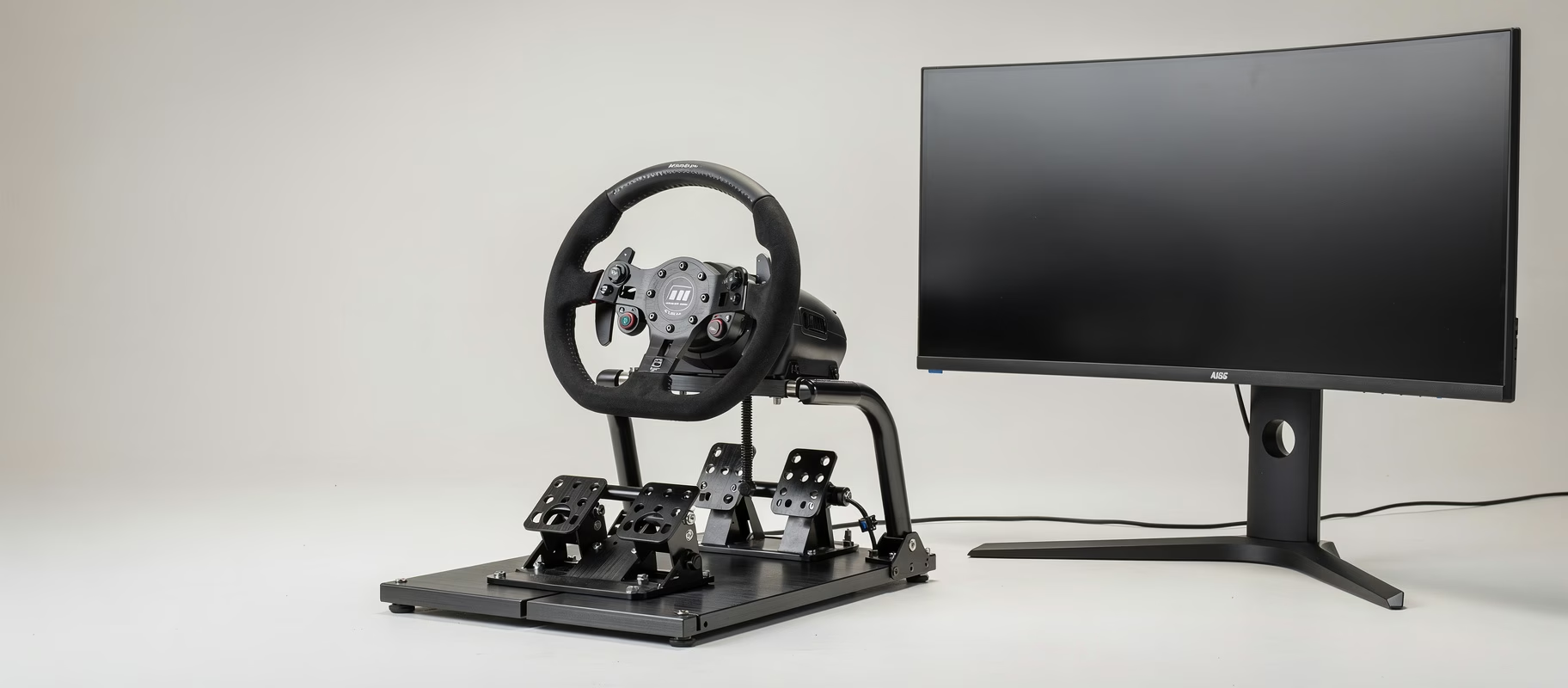
What actually matters is which part of the screen gets covered. In a good setup, your wheel blocks the lower-center of the screen, an area most games don’t use for critical info anyway (that’s usually reserved for track view). Gauges, speedo, shift lights typically sit just above or just below center, and should stay visible above the top rim of your wheel.
If you notice your wheel completely blocking your tach, that’s almost always a height problem, not a curve problem. Raise the monitor 3-4 centimeters, or drop your seat slightly. Sounds boring. Works every time.
Step By Step: Getting It Right
- Sit in your actual racing position. Not standing, not from your office chair. In the rig, helmet on if you wear one.
- Look straight ahead. Wherever your eyes naturally land, that’s your horizon line. Mark that height (a piece of tape works fine, nobody’s judging).
- Adjust monitor height so the center of the screen sits right at or just below that line.
- Load a race and check your HUD. Is your tach or speedo hiding behind the wheel? Adjust height in small increments, a few centimeters at a time.
- Check your distance. Can you still see the edges of the screen sharply without turning your neck? If not, move the monitor closer or farther until the curve feels natural.
- Add a slight tilt. A few degrees back, aimed at your eye level.
Get this right once and you’ll never think about it again. Get it wrong and you’ll be cursing yourself every single session.
The Mistakes Everyone Makes
Mistake 1: Setting monitor height while sitting at your desk, not your rig. You sit differently in a racing seat than in an office chair. Different posture, different neck angle, different everything.
Mistake 2: Thinking a bigger screen fixes the problem. It doesn’t. A bigger screen with bad positioning just means a bigger chunk of your HUD gets hidden. The BenQ Mobiuz EX2710U, a 27-inch 4K flat panel, actually has fewer issues here. Smaller screen, less chance your wheel covers something important. Not as immersive as a 34-inch curved display, but easier to align in a compact rig.
Mistake 3: Cheaping out on the monitor arm. A curved 34-inch panel is heavy. A budget arm will slowly droop over a few weeks. Your perfect alignment today becomes a crooked mess next month.
Mistake 4: Forgetting other accessories get in the way too. Running a Logitech Driving Force Shifter mounted next to your wheel? That eats into your sightline too if it’s positioned too high. Check your entire cockpit layout, not just the wheel.
Which Monitor Fits Which Setup
If you’re still shopping and reading this to help make a decision: prioritize adjustability over spec-sheet bragging rights.
The Gigabyte G34WQCP has a height-adjustable stand and 180Hz, great for both alignment and smoothness. Its one annoyance is a fiddly menu, but you set that once and forget it.
The Philips 346E2CUAE offers height and tilt adjustment (100 mm height, -5°/20° tilt), but no swivel function. USB-C is a nice bonus, though not why you’d buy this for a rig.
The BenQ Mobiuz EX2710U isn’t an ultrawide, but it’s the answer if you simply don’t want to deal with alignment headaches. Smaller screen, simpler geometry, less chance your wheel blocks anything critical.
None of these monitors solve your alignment problem on their own. Only you do that, with a tape measure and ten minutes of patience.