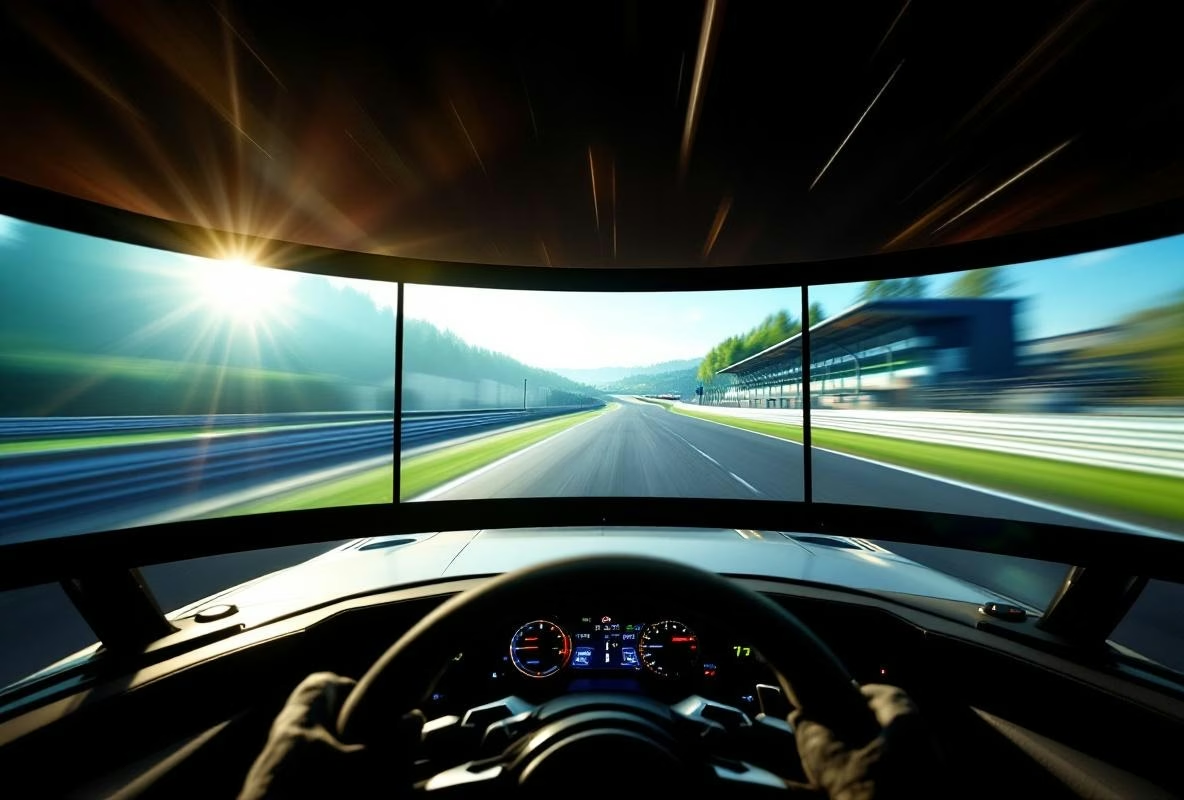
The Ultimate Guide to Choosing and Setting Up Triple Monitors for Sim Racing
For many sim racers, a triple monitor setup is the holy grail. It delivers an unparalleled sense of speed, depth, and peripheral vision, allowing you to better ‘feel’ the car and the track. However, choosing and installing one can be daunting. This ultimate guide walks you through the process step-by-step: from selecting the right screens to fine-tuning the software. Let’s start with the fundamental question.
Why Triple Monitors? The Core Benefits
Before diving into the technical details, it’s important to understand why you would choose three screens in the first place. The biggest advantage is the wide field of view (FOV). With a single monitor, you only see a narrow ‘slit’ in front of you. With three screens, the image wraps around you, much like in a real car. This dramatically improves your depth perception, making judging distances and hitting apexes more intuitive. Additionally, you gain vision alongside your car, which is crucial for side-by-side racing and checking your mirrors.
The Big Decision: Which Monitors Should I Buy?
This is the heart of the matter. The community has countless questions about resolution, panel types, and form factor. Let’s break down the key factors.
Resolution: 1080p vs 1440p vs 4K
- 1080p (Full HD): The budget-friendly choice. The advantage is that your graphics card doesn’t have to work as hard, allowing for high frame rates (144Hz+) for smooth gameplay. The downside is that pixel density on screens larger than 27 inches can become visible, making the image less sharp.
- 1440p (QHD): The recommended sweet spot for most sim racers. It offers an excellent balance between sharpness and performance. The image is significantly sharper than 1080p but less demanding on your GPU than 4K. For a triple setup on 27-inch screens, this is ideal. An excellent example is the Samsung Odyssey G5: 27 inch, 1440p, 165Hz, and curved.
- 4K (Ultra HD): Offers ultimate sharpness but is extremely demanding. For triple 4K gaming, you need an absolute top-tier graphics card (like an RTX 4090) to achieve high frame rates. Often, the investment isn’t proportional to the visual benefit in sim racing.
Advice: Go for 1440p if your budget allows. It’s future-proof and the visual upgrade over 1080p is significant.
Panel Type: IPS vs VA vs TN
- IPS (In-Plane Switching): Famous for its excellent colors and viewing angles. Ideal if you play other games or use multimedia besides racing. The downside is often a lower contrast ratio (less deep blacks) and sometimes ‘IPS glow’ in dark scenes. Response times are now very good on gaming models.
- VA (Vertical Alignment): Offers the best contrast ratio, with deep, rich blacks. Perfect for night races or in tunnels. Viewing angles are good but not as perfect as IPS. The main drawback is ghosting or ‘black smearing’ during fast motion on some models. Always read reviews about this.
- TN (Twisted Nematic): Largely obsolete for triple setups. While it has the fastest response times, its colors and viewing angles are poor. Not recommended.
Advice: The battle is between IPS and VA. Choose IPS for the most consistent and colorful experience. Choose VA if you want maximum contrast for a more ‘cinematic’ feel and can find a model with minimal ghosting.
Form Factor: Curved vs Flat
- Curved Monitors: These are popular for triple setups because the curve follows the natural field of view of your eyes. It can enhance immersion and strengthen the feeling of ‘being in the cockpit’. Ensure all three screens have the same curve radius (e.g., 1000R or 1500R).
- Flat Monitors: The traditional choice. They are often slightly cheaper and more models are available. Setup is simpler, but the seamless transition between screens can feel less natural.
Advice: Curved screens are a great upgrade for immersion but are not strictly necessary. If your budget allows and you can find three identical curved screens, go for it. Otherwise, flat screens are still excellent.
Size and Aspect Ratio
27-inch is the standard size for sim racing. It offers a good balance between FOV and distance to your eyes. 32-inch screens are impressive but require more space and computing power. NEVER mix different screen sizes. This makes correct FOV calibration impossible and results in a distorted image.
The Essential Accessories: Bezel Kits and Mounts
Bezel Kits: Creating the Seamless Illusion
The black borders (bezels) between your screens break immersion. A bezel kit is applied over these borders. It consists of thin, often magnetic strips that visually extend the image from one screen to the next, making the bezels ‘disappear’. Brands like the Asus Bezel-Free Kit or DIY alternatives are popular. They work best with monitors that have thin bezels.
Monitor Mounts: Achieving Perfect Positioning
A sturdy triple monitor arm is essential. It saves desk space and allows you to position the screens perfectly. Pay attention to:
- Weight Capacity: Must support the weight of three screens.
- Range of Motion: Must offer sufficient tilt, swivel, and height adjustment.
- Stability: A heavy, well-anchored mount prevents wobble.
Popular options are mounts from Sim Lab, Trak Racer, or general brands like Ergotron.
Practical Installation: Step-by-Step
- Physical Setup: Mount the screens on the arm. Position your cockpit or seat. The ideal distance is where your eyes are roughly at ⅔ of the height of the center screen.
- Set the Angle: Angle the side screens inward. An angle of 50-60 degrees relative to the center screen is a good starting point. This varies per person and cockpit.
- Apply Bezel Kit: Follow the kit’s instructions. The goal is to create a seamless transition.
- Connect: Connect all screens to your graphics card. Preferably use the same port types (e.g., all DisplayPort) for consistency.
The Software Side: Nvidia Surround / AMD Eyefinity and In-Game Settings
Configuring the Environment (Nvidia/AMD)
To make your three screens work as one large display, you need to enable Nvidia Surround (for Nvidia cards) or AMD Eyefinity (for AMD cards). This software virtually ‘stitches’ the screens together.
- Crucial Step: Configure bezel compensation here. This tells the software how wide the physical bezels are so the image wraps around them correctly.
The Holy Grail: Calculating Correct FOV
This is the most important setting for a realistic feel. An incorrect FOV makes everything feel too fast or too slow.
- Measure: Measure the distance from your eyes to the center screen. Measure the width of a single screen.
- Calculate: Use our FOV calculator. Enter your screen size, resolution, angle, and distance.
- Apply: Enter the calculated horizontal FOV value into the game’s settings (e.g., in iRacing, Assetto Corsa Competizione).
Fine-Tuning Per Game
Each sim has its own menus:
- iRacing: Use the graphics settings to configure triple screens (number of screens, resolution, bezel compensation).
- Assetto Corsa Competizione: Has an extensive triple screen setup menu under ‘Video’.
- Assetto Corsa (Content Manager): Set the total resolution and use the ‘Triple Screen’ app or built-in settings.
Common Mistakes and Misconceptions
- “Higher FOV is always better”: WRONG. Too high an FOV creates a fisheye effect and distorts the image. Always use the calculated, correct FOV.
- “I can use my old monitor as a side screen”: This leads to color, brightness, and response time mismatches. Always use three identical monitors.
- “Bezel kits are just cosmetic”: They play a crucial role in creating a continuous image and reducing distraction.
- “My GPU could never handle this”: With DLSS/FSR upscaling technologies and smart graphics settings (turning down shadows, reflections), a smooth 1440p experience is often possible with a mid-range card.
Conclusion: Your Path to Triple Screen Immersion
The journey to a perfect triple monitor setup requires research, some budget, and patience during installation. The core is: choose three identical 1440p screens (IPS or VA, based on preference), invest in a sturdy mount and a bezel kit, and spend most of your time correctly setting your FOV in the software. Also read our complete FOV guide for more depth. The result is not just a visual spectacle, but a fundamental upgrade to your consistency, racecraft, and enjoyment on track. Good luck with the build!