Your FOV is probably wrong. And it’s costing you lap time.
Most sim racers never touch their Field of View setting, or worse, they crank it up to see more of the track. The result? A fish-eye distortion that makes braking points impossible to judge and corners feel like guesswork.
If you just want the number, plug your screen size and distance into the MySimRig FOV calculator and use that as your baseline. But if you want to understand why FOV matters and how to dial it in perfectly for your setup, keep reading.
The Ultimate Sim Racing FOV Guide (With Real Settings That Actually Work)
What FOV Actually Is
Think of your monitor as a window into the virtual world. Field of View is the angle of that window relative to your eyes. Get it wrong and objects appear at the wrong size and distance, like looking through a fisheye lens or a telescope.
The geometry is simple: draw lines from your eyes to the left and right edges of your screen. The angle between those lines is your horizontal FOV. Sit closer, the angle widens. Move back, it narrows. Use a bigger screen, it widens.
The formula:
FOV = 2 × arctan(screen width ÷ (2 × viewing distance))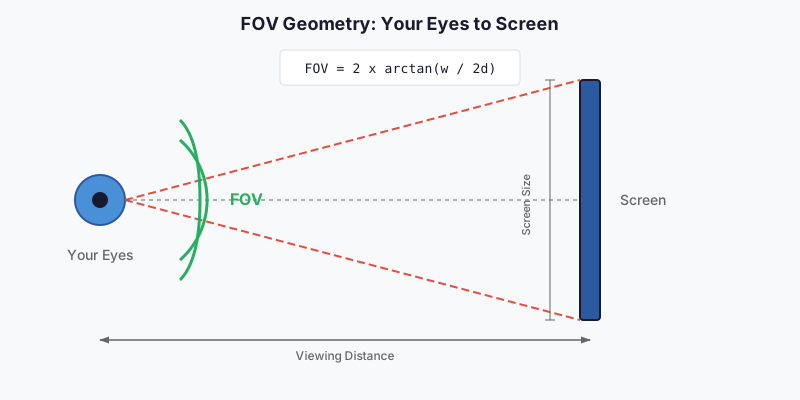
You don’t need to do this math yourself. Our FOV calculator tool handles it for you, including conversions between horizontal and vertical FOV.
Horizontal vs Vertical FOV
Here’s where people get confused. Different sims use different FOV types:
Horizontal FOV (hFOV) measures the side-to-side viewing angle:
- iRacing
- Project CARS / AMS2
- F1 series
Vertical FOV (vFOV) measures the top-to-bottom angle:
- Assetto Corsa
- Assetto Corsa Competizione
- rFactor 2
- RaceRoom
A 50° vertical FOV is not the same as 50° horizontal. On a 16:9 screen, 60° vFOV roughly equals 94° hFOV. Put the wrong type into your sim and you’ll be way off.
Most modern sims use “Hor+” scaling: the vertical FOV stays fixed while horizontal expands with wider aspect ratios. That’s why ultrawides give you more peripheral view at the same vertical FOV.
Single Monitor Setup
This is the most common setup. Here’s what you need:
- Measure your viewing distance from your eyes to the screen center (in cm)
- Get your screen width (not diagonal, actual width in cm)
- Plug it into a calculator
Typical results for common setups at 60-70 cm viewing distance:
| Monitor | Viewing Distance | Calculated hFOV |
|---|---|---|
| 24” 16:9 | 60 cm | ~45° |
| 27” 16:9 | 70 cm | ~46° |
| 32” 16:9 | 80 cm | ~48° |
| 34” 21:9 ultrawide | 70 cm | ~58° |
Yes, these numbers feel narrow. That’s normal. If you’ve been racing at 90° FOV, dropping to 50° will feel like looking through a toilet paper tube. Stick with it.
Ultrawide Monitors
Same calculation, just wider result. The aspect ratio does the heavy lifting.
A 34” 21:9 ultrawide at the same distance as a 27” 16:9 will give you roughly 12° more horizontal view while maintaining correct perspective. That’s free peripheral vision without distortion.
A 49” 32:9 super-ultrawide approaches triple-screen territory, often yielding 100-110° hFOV. Make sure your calculator accounts for the aspect ratio, not just diagonal size.
Triple-Screen Setups
Triples are the gold standard for immersion. Combined horizontal FOV can reach 120-180°, covering your peripheral vision like a real car.
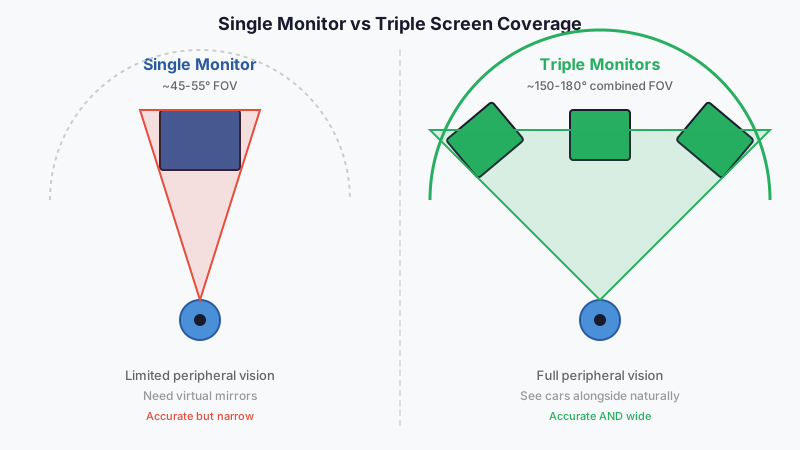
The setup is more complex:
Step 1: Calculate Per-Screen FOV
Calculate FOV for just the center monitor (same as single-screen method). This gives you the base value.
Step 2: Measure Your Angles
You need to know the physical angle of your side monitors. Most setups run 30-45° inward from flat. Measure with a protractor or calculate it:
- Measure the distance from your eyes to the center of the middle screen
- Measure the distance between the outer edges of your side monitors
- Use an online triangle calculator to derive the angle
Step 3: Configure Triple Rendering
Games with proper triple support (iRacing, rFactor 2, AMS2) let you input:
- Monitor width
- Bezel size
- Viewing distance
- Monitor angle
The sim then renders three separate projections, one per screen, with correct perspective.
Games without true triple support (like ACC) render one stretched image across all screens. You’ll see some fisheye distortion on the sides. Mitigate it by using a narrower FOV and angling your monitors more aggressively.
Triple Screen Quick Tips
- Side monitors should angle ~45° inward for optimal wraparound
- Measure bezel width (the gap between screens) for alignment correction
- All three screens must be at the same height
- Don’t use “curved” mode in FOV tools unless you have a continuous wraparound display
Curved Screens
Curved monitors use the same calculation as flat screens. The curvature isn’t extreme enough to change the math.
Measure the chord width (straight line from left to right edge, not following the curve). Input that as your screen width. The calculator doesn’t care about the curve.
For curved triples, still use the flat calculation per screen. You might need a small negative bezel value if the curves cause overlap.
VR Headsets
Good news: VR handles FOV automatically. The headset’s optics determine the viewing angle (typically 90-110° per eye), and the game renders accordingly.
There’s no FOV slider to adjust. Just tweak your seat position for comfortable viewing of instruments and mirrors.
Fixed vs Dynamic FOV
Fixed FOV stays constant while driving. This is what serious sims use and what you want for consistent driving.
Dynamic FOV changes with speed, widening at high velocity to exaggerate the sensation of motion. Project CARS does this by default. Some arcade racers and older titles use it too.
Dynamic FOV feels exciting but wrecks your consistency. If your FOV is constantly shifting, your visual references shift with it. Braking points become guesswork.
Disable dynamic FOV, speed effects, and camera shake in any sim that offers them. Fixed, calculated FOV will feel slower at first but delivers far better precision.
Game-Specific Notes
iRacing
- Uses horizontal FOV
- Built-in calculator in graphics options
- Triple users: enable “Render each screen separately”
- Typical single-screen values: 50-70° hFOV
Assetto Corsa Competizione (ACC)
- Uses vertical FOV
- No native triple-screen rendering (Unreal Engine limitation)
- Use Nvidia Surround for triples, accept some side distortion
- Typical values: 25-35° vFOV for triples, 40-50° for single
Assetto Corsa (AC)
- Uses vertical FOV
- Adjust in View Settings or assetto_corsa.ini
- Default 56° vFOV is too high for most setups
- Calculate your correct vFOV and dial it down
Automobilista 2 (AMS2)
- Uses horizontal FOV
- Minimum value is ~46° hFOV (can’t go lower)
- Proper triple support added in late 2022 updates
- If your calculator says 27°, you used vertical by mistake
rFactor 2
- Uses vertical FOV
- Enable “Multiview” for proper triple rendering
- Adjust side camera rotation in config or via hotkeys
- Without Multiview, you’ll get massive fisheye on triples
RaceRoom Racing Experience
- Uses a multiplier (1.0x = 58° vFOV = ~90° hFOV on 16:9)
- Adjust slider from 0.5x to 1.3x
- For exact values, edit car camera XML files
- Most serious racers use 0.6-0.8x
F1 Series (EA Sports)
- Uses horizontal FOV (likely, not officially documented)
- Limited adjustment range
- Some config editing may be needed for narrow values
Common FOV Mistakes
“Wider is better for awareness” — No. Wide FOV distorts perspective and makes distances impossible to judge. You see more but understand less.
Using the wrong FOV type — Putting 60° hFOV into a sim expecting vFOV gives you a completely wrong view. Always check what your game expects.
Ignoring aspect ratio — A 49” ultrawide needs different treatment than a 27” 16:9. Make sure your calculator knows your screen shape.
Copying streamers — Their setup isn’t your setup. Different screen size, different distance, different FOV. Calculate your own.
Guessing or using defaults — Default FOV is wide to accommodate various setups. It’s almost never correct for your specific rig.
Incorrect measurements — Measure eye-to-screen, not wheel-to-screen. Use actual screen width, not diagonal. A few centimeters off changes the result noticeably.
Giving up too soon — Correct FOV feels weird initially. Your brain needs 5-10 sessions to recalibrate. Don’t bounce back to your old settings after one lap.
Step-by-Step Checklist
- Sit in your racing position — where you actually drive, not casually
- Measure viewing distance — eyes to screen center, in centimeters
- Measure screen width — actual viewable width, not diagonal
- Use the MySimRig FOV calculator — input your values
- Note both hFOV and vFOV — you’ll need the right one for your sim
- Apply the setting in-game — check the game-specific notes above
- Adjust seat position — move the virtual camera, not the FOV
- Drive 5-10 sessions — let your brain adapt before judging
- Fine-tune if needed — ±2-3° from calculated is acceptable
- Lock it in — consistency is key once you’re dialed
FAQ
Does FOV make you faster?
Yes. A correct FOV lets you judge distances accurately, leading to consistent braking points and better car placement. Most drivers see 2-3 seconds improvement after adapting to proper FOV.
What FOV should I use on a 27” monitor?
At typical sim racing distances (60-70 cm), expect 45-55° horizontal FOV. Use a calculator for your exact measurement rather than guessing.
Why does correct FOV feel so zoomed in?
Because default FOV is wrong. Games ship with wide defaults to accommodate various setups. Once you adapt to correct FOV, going back to the old setting feels distorted.
Should I adjust FOV to see my mirrors?
No. Use virtual mirror overlays or glance buttons instead. Widening FOV to see mirrors compromises your forward view where you spend 95% of your attention.
How do I convert between horizontal and vertical FOV?
Use a calculator that outputs both. The conversion depends on aspect ratio. For 16:9 screens, vFOV is roughly 60% of hFOV.
Is correct FOV worth it on a small screen?
Absolutely. Even a 24” monitor benefits from correct FOV. Yes, the view will be narrow. Use virtual mirrors and look functions. The accuracy gain is worth it.
Start Today
You’ve read this far, so you know FOV matters. Now do something about it.
- Grab a tape measure
- Use the MySimRig FOV calculator
- Set the value in your sim
- Commit to 10 sessions before judging
For the quick motivational version of why this matters, check out our article on why correct FOV makes you faster.
Your braking points will thank you.