I put holes in my wall. Three of them. Extra ones. Because I thought mounting triple monitors would be a ‘quick afternoon project.’ What I got was a crooked, warped, headache-inducing mess. It took a weekend of swearing, a new drill bit, and several Reddit threads that nearly broke me before it finally clicked.
Triple monitors are transformative. They change sim racing. But the setup process? It’s absurd. And anyone who tells you it’s ‘easy’ is lying. Or they had help.
Let’s fix that. This isn’t a shiny, polished tutorial. This is the practical, sometimes frustrating, but ultimately working method to make your three screens do what they’re supposed to: immerse you in the race, not the configuration.
Your Monitors Will Never Look Level (And That’s Fine)
Your first mistake is aiming for perfection. You don’t need perfect. You need good enough for your brain to accept it. Those millimeter-precise YouTube videos? Made by people with CNC-controlled monitor arms. You probably have a standard stand, a spirit level, and the patience of a goldfish.
The goal is simple: create one seamless, curved image wrapped around your head. No gaps, no distorted corners, no feeling like you’re peering through a keyhole.
But how?
The Hardware: Buy This First, Save Yourself the Pain
You can’t build on sand. Your monitor stand is the foundation. And no, three separate desk arms are not a good idea. Trust me.
You need:
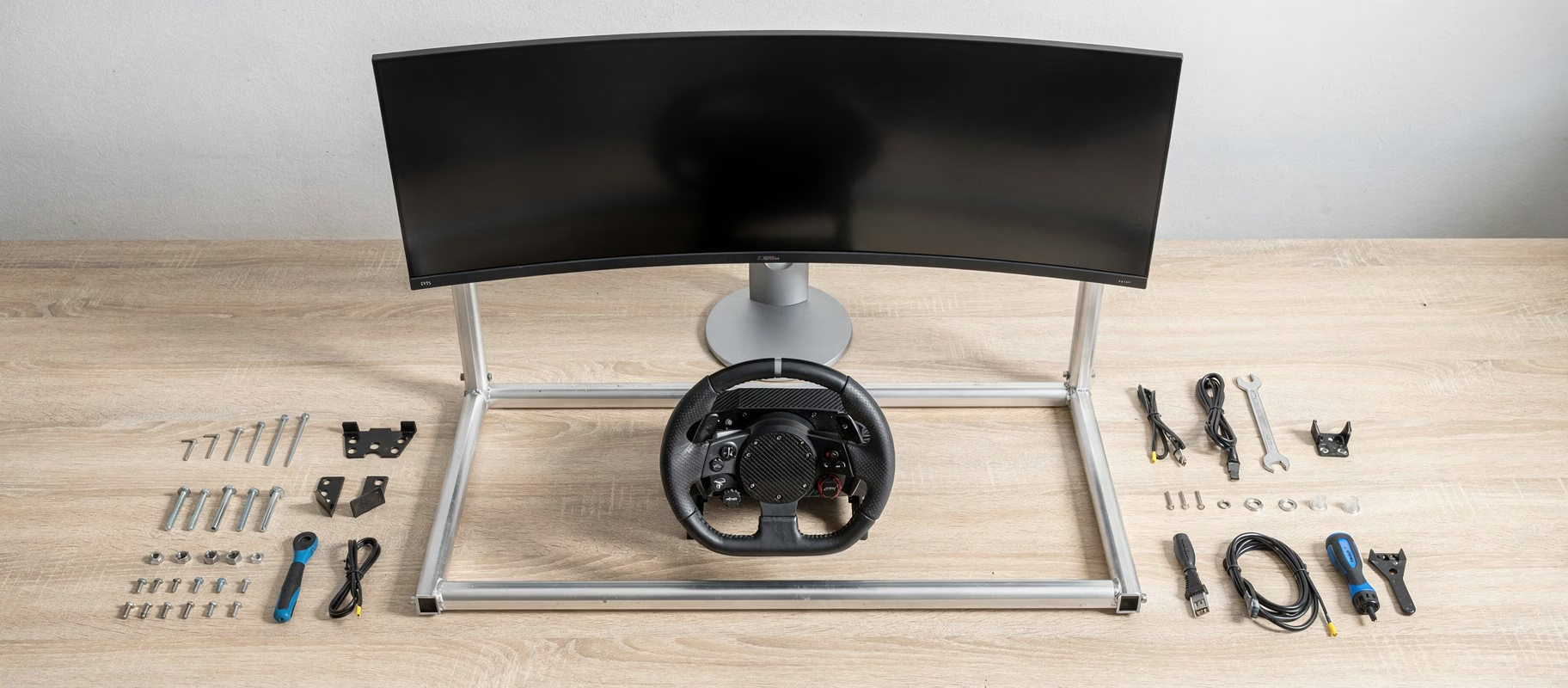
- A proper triple monitor stand. Think Next Level Racing or Trak Racer. An integrated, rigid beam everything can attach to. This is not the place to save money.
- Three identical monitors. Yes, identical. Same model, same year. Otherwise, you’ll fight color, brightness, and response time differences until the end of days.
- A GPU that can handle it. Plan for at least an NVIDIA RTX 4070 or AMD Radeon 7800 XT for 1440p across three screens. 1080p? You might get away with less. 4K? Forget it. Unless you want a second mortgage.
- A spirit level (a digital one is best). Your eyes lie. Always.
- A roll of duct tape. For moral support. And maybe to temporarily hold something.
The Physical Setup: Grunt Work, Measuring, Swearing
This is where you’ll fail. It’s okay. Everyone fails here.
- Mount all screens on the stand. Get them snug, but don’t fully tighten the locking screws yet. You need to wiggle them.
- Position the stand. Make sure it’s level. Not ‘kinda’. Level.
- Start with the center screen. This is your anchor. Set the height so the centerline of the screen is roughly at your eye level when you’re in the rig. Use your level.
- Now the tricky bit: the angle. The standard ‘good’ angle is between 45 and 60 degrees. Why? It’s a compromise between a wide field of view and not murdering your GPU. I always start at 50. A protractor is your friend. Or print an angle guide.
- Attach the side screens. Swing them to the correct angle. You now have a rough, ugly ‘U’ shape.
- The alignment hell begins. This is where I made those extra wall holes. You need to align the bezels, not the screens. The physical plastic edge of the left screen needs to get as close as possible to the image edge of the center screen. And vice versa. This is a game of millimeters: twist, push, tighten a screw a quarter-turn, measure again, swear.
My ‘aha’ moment? Use a ruler or a piece of cardboard as a jig. Hold it against the edge of the center screen and slide the side screen right up to it. Move the jig to the other side. Repeat. Forever.
If done right, they should now be roughly aligned and at the same angle. Tighten all locking screws firmly. Not with all your might, but firmly.
The Software: Where the Magic (and Despair) Happens
Hardware is only half the battle. Now you must convince your PC and game this is one big, curved screen.
Step 1: NVIDIA Surround / AMD Eyefinity This is the big one. You combine three screens into one virtual display for Windows.
- NVIDIA: Right-click desktop -> NVIDIA Control Panel -> Configure Surround, PhysX. Check ‘Enable Surround with multiple displays’. Follow the wizard. It will detect your screens. Make sure the order (left-center-right) is correct.
- AMD: Open AMD Software -> Settings -> Display. Enable Eyefinity and create a group.
Warning: This nukes your individual screen settings. All desktop icons will fly to the center screen. It’s normal. Take a deep breath.
Step 2: The In-Game Settings – FOV is King Fire up your sim. iRacing, Assetto Corsa Competizione, whatever. Go to graphics settings.
- Resolution: This should now be the total resolution of your three screens (e.g., 7680 x 1440 for three 1440p screens).
- Display Mode: Select ‘Triple Screen’ or ‘Three Screens’.
- Field of View (FOV): This is sacred. Use a FOV calculator. Google it. Input your screen size (diagonal), resolution, and, crucially, the angle of your side screens. It spits out a number. Type that number in. Don’t guess. Don’t use ‘what looks better’. Use the number.
Why? Because correct FOV makes perspective and distance accurate. Wrong FOV feels like driving through a telephoto lens or a fisheye. The number.
Step 3: Bezel Correction Those black borders between your screens? You can ‘correct’ them. In your sim’s triple screen settings, look for ‘Bezel Width’ or ‘Bezel Correction’. Measure the width of your monitor’s physical bezel (the plastic). Input that number in millimeters. The game will stretch the image slightly over that bezel, making it seem seamless. It works shockingly well.
The Pitfalls (You Will Hit These)
- GPU is on fire: Three screens is heavy. Turn your graphics details down first. Bump them up slowly. Use DLSS/FSR if you can.
- Windows lost its mind: Sometimes Surround/Eyefinity ‘forgets’ the config after an update. Save your profile. Don’t be afraid to set it up again.
- It still looks weird: 99% of the time, it’s the angle or the FOV. Double-check your measurements. Run the calculator again.
- You can’t reach the menu: In some games, the menu appears on a side screen. Usually, there’s a setting (‘Lock Menu to Center Screen’) or you can Alt+Enter to windowed mode, drag the menu, and go back fullscreen.
Is It Worth It?
Absolutely.
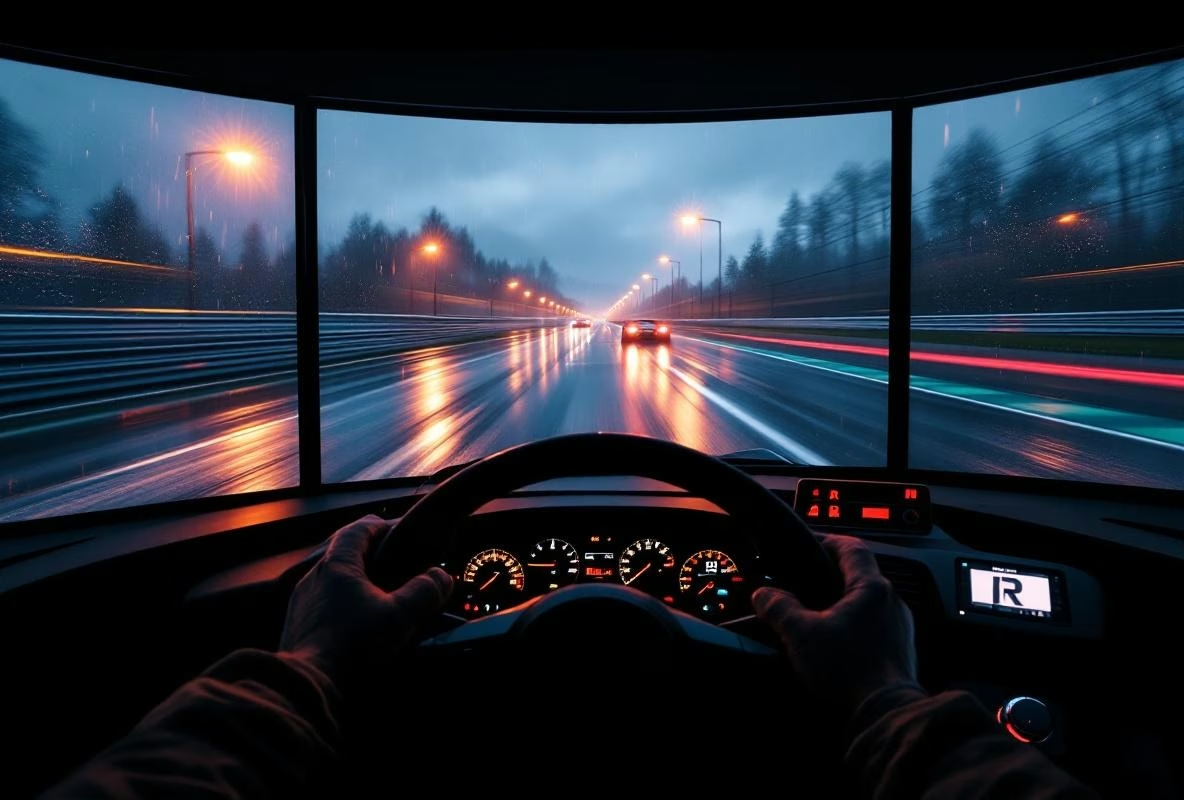
After all that fussing, tweaking, frustrated clicking… you sit down. The corner wraps around you. You see the apex without turning your head. You feel the width of the car. It’s not a screen anymore, it’s a window.
It’s chaos to set up. But once it works, you’ll never go back.
Now go race. You’ve earned it.