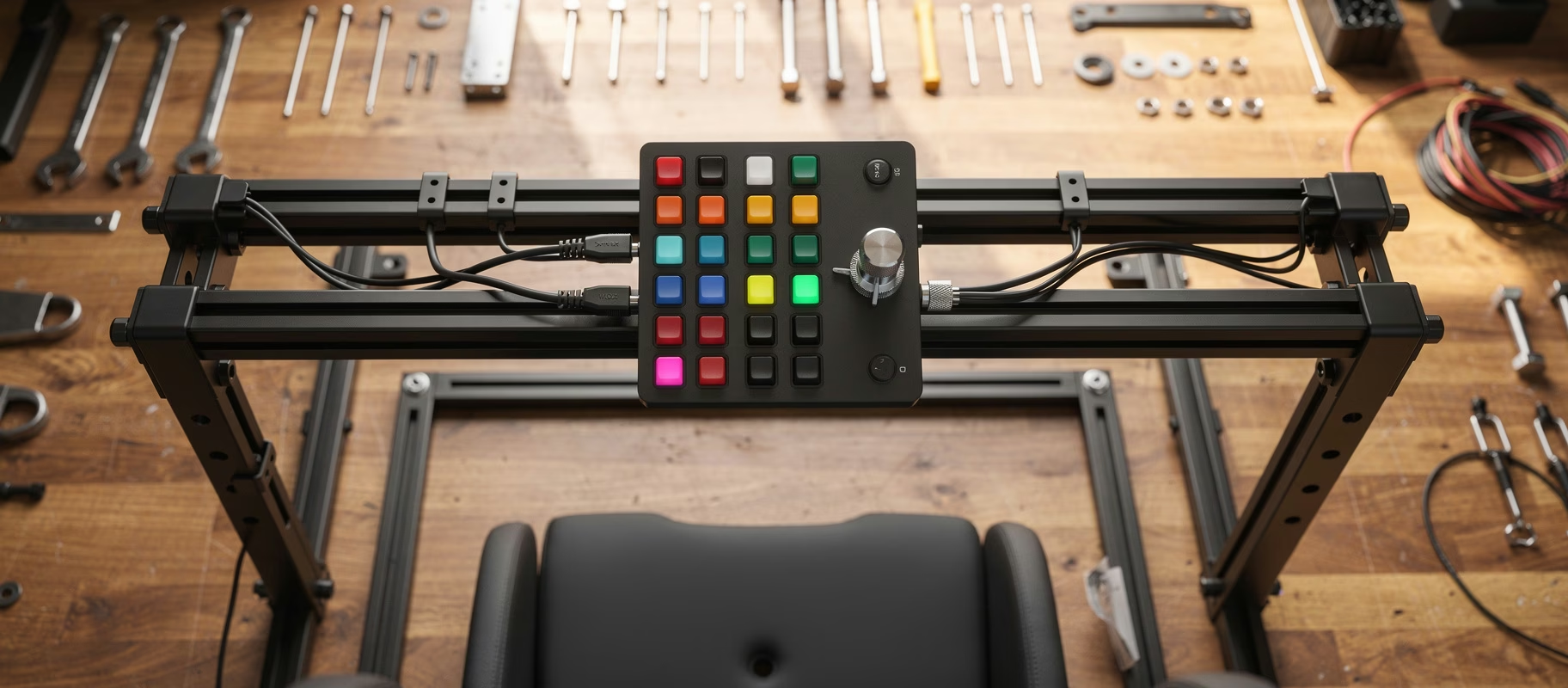
A button box. Sounds like a toy, feels like a cockpit. And honestly? It’s the most fun accessory you’ll almost never actually need.
Still, the same question keeps coming up: how do you get one working properly in your rig? The answer fits in one sentence. Mount it solidly within reach, let Windows recognize it, and bind every button per sim. The rest (manufacturer software, SimHub, macros) is sauce. Tasty, but not a meal.
First, the awkward question: do you even need one?
A button box is usually a standalone USB device with buttons, switches and rotary encoders that you plug in next to your wheel and pedals. According to Fanatec, modern PC sims accept far more inputs than you’ll ever use, up to thousands of assignments. So the software has plenty of room for buttons. The problem is where your fingers can find them.
Plenty of people assume a sim without a button box is “limited.” Nonsense. The buttons on your wheel cover the basics just fine: pit limiter, ABS, TC, lights. A button box only really earns its place if you:
- Race endurance or GT3 and want to adjust brake bias, TC, ABS or fuel map mid-race without a menu.
- Switch between disciplines and need different functions per car.
- Want shortcuts for things like switching cameras or starting a replay.
Mostly racing casually, in one class, with a wheel full of buttons? Skip it. Really. It’s an add-on, not an obligation.
Step 1: Mounting, because a sliding box is a dead box
Before you install a single driver, the box needs a fixed home. One that slides away under braking never gets used, no matter how pretty your profiles are.
Most frames and cockpits have side rails or mounting holes for a bracket. A frame is the bare chassis. A cockpit is the whole package of frame, seat and mounting points that locks down your wheel, pedals and accessories (Playseat). On a modular aluminium cockpit like the Sim-Lab P1X Pro or the Sim-Lab GT1 Evo, you just slide a bracket onto the profile wherever you want it. On a tube frame it’s usually a clamp or magnetic bracket on the wheel mount.
Where should it go?
- Within reach, without moving your hand far off the wheel at speed.
- Test it with your headset or helmet on. They limit your vision and movement more than you’d think.
- Cables away from the pedals and steering column. A USB cable around your throttle isn’t a feature.
Step 2: Plug in and check that Windows plays along
Most button boxes show up in Windows as a plain HID game controller, just like a joystick. Plug in the USB cable and:
- Type
joy.cplinto the Windows search bar. That opens the game controller test window. - Select the button box from the list and click Properties.
- Press every button and turn every encoder, one at a time. Does the indicator on the test tab light up?
A button does nothing? Then the problem is hardware or firmware (a loose internal connector, outdated firmware), not your sim. That’s exactly why you do this step first. If everything works here, you’ll know for sure later, when binding, that the box isn’t the problem.
Step 3: Binding, per sim, and yes, for every sim again
This is where it often goes wrong. People expect one configuration to work everywhere. It doesn’t. iRacing, Assetto Corsa Competizione, rFactor 2: every sim has its own control menu and its own profiles.
The route is roughly the same everywhere:
- Open the controls or controller menu in the settings.
- Pick the function you want to assign, for example “Brake Bias Increase.”
- Click the input field and press the button on your box.
- Save the profile under a name you’ll still understand in three months, especially if you’re running wheel, pedals and box at the same time.
Build it per discipline. A GT3 profile with pit functions looks very different from one for formula cars. Boring work. One-time work, luckily.
Step 4: Manufacturer software for the extra layer
If your box belongs to a big brand or a wheelbase ecosystem, you usually get software with it. Think Fanatec Control Panel and FanaLab, Moza Pit House, or Simagic SimPro Manager (formerly Alpha Manager). With those you can often:
- Double up your encoders with a shift button: a short press is function A, holding it is function B.
- Set up LEDs or a display, if your box has them.
- Switch profiles automatically per car or game.
But check the manual for your model. Not every box does shift layers or automatic switching, and what it can do often depends on the firmware version. Don’t assume.
Step 5: SimHub, for people who never have enough
Beyond brand software, part of the community uses standalone tools like SimHub. It lets you link buttons to dashboards, telemetry-driven actions, or virtual inputs your sim doesn’t know about. Handy when:
- Your box needs to do more than the sim allows.
- You want the same buttons to drive a physical dashboard or an extra screen.
- You want macros that fire several actions in a row, like a complete pit stop sequence.
My advice: get the plain binding from step 3 working first. Only then put SimHub on top. Otherwise, when something breaks, you’re debugging two layers at once, and that’s exactly as fun as it sounds.
Where it goes wrong in practice
- Duplicate assignments. The same function on your wheel and your box gets you conflicts or ghost inputs. One function, one button.
- Just out of reach. A box you have to stretch for won’t get used during a race. Done.
- Not saving profiles per game. Every sim keeps its own bindings. Save them, per title.
- Ignoring firmware. On branded boxes, old firmware makes buttons vanish or breaks shift functions. Check the manufacturer’s site first, swear later.
So: buy one or not?
Yes, if you race endurance or multiclass and want to tinker with your car mid-race. Or if you switch disciplines a lot. A ready-made option is the Asetek La Prima GT Button Box, compact and packed with buttons and encoders for brake bias, TC and mappings.
No, if you race casually in one sim with a wheel that already has enough buttons. And on a tight budget? Money spent on pedals buys more lap time than money spent on extra buttons. A load cell brake like the one on the Heusinkveld Sim Pedals Ultimate+ makes you faster. A button box mostly makes you happier.
Nothing wrong with that.