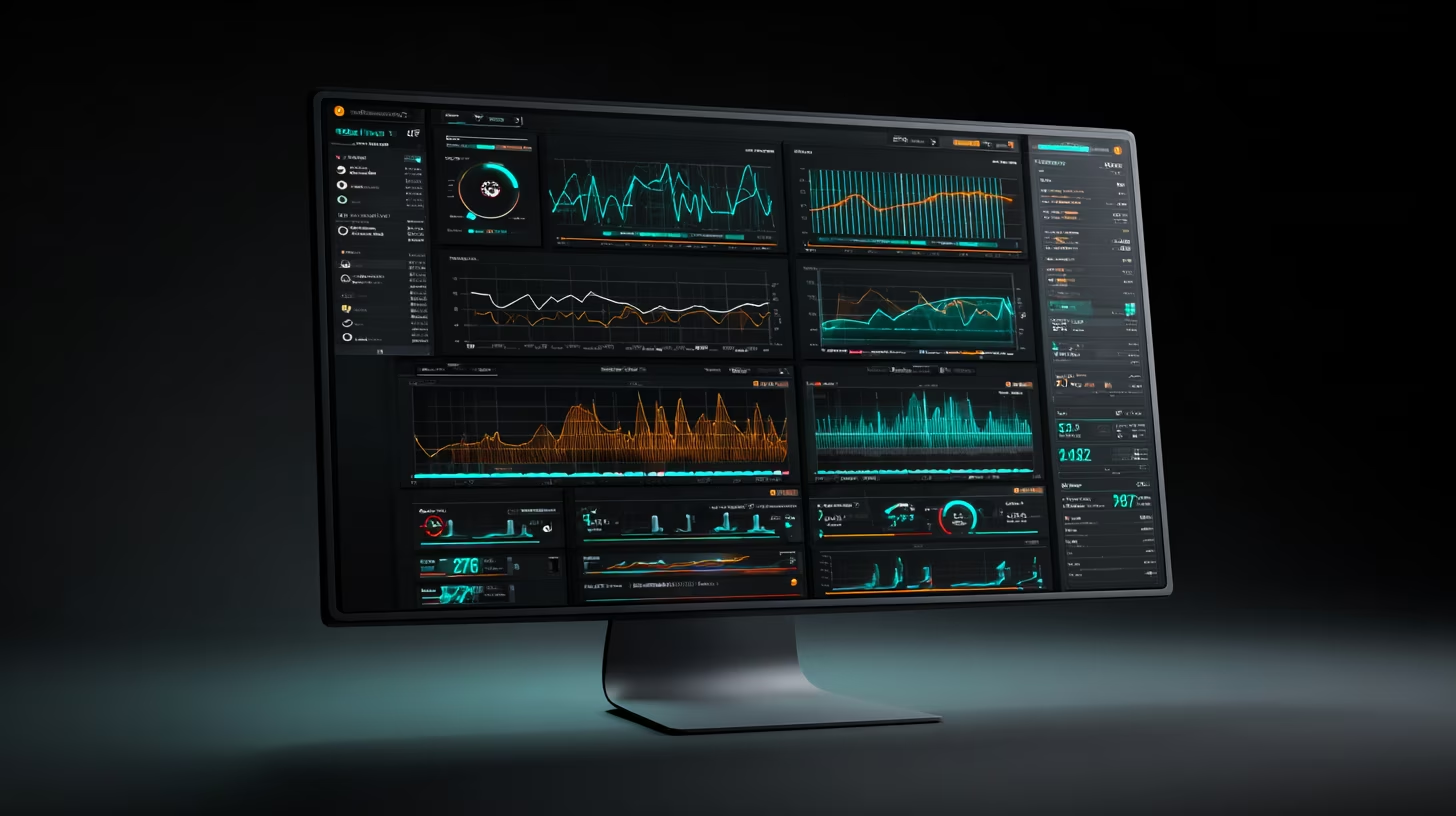
Telemetry looks complex, but for sim racers it is simply a truth detector: it shows whether you braked too late, coasted too long, or overheated a tire. This beginner-friendly guide keeps you in the car and on pace while using sim racing telemetry to make targeted gains.
How telemetry data gets out of your sim (PC vs console)
- Shared memory (PC): ACC, rFactor 2 and many PC sims write data to RAM that tools like MoTeC, Garage 61 or Track Titan can read directly. It is fast and detailed but works only on the same machine.
- UDP broadcast (consoles and multi-device): F1/Forza on PS5/Xbox stream packets to an IP/port. Apps like Track Titan, SimHub or SRT catch those packets on a laptop/tablet. Set both devices on the same network and match the port (commonly 20777 for F1).
- Takeaway: PC users plug tools straight into shared memory; console users must enable UDP and point it to a phone/tablet/PC.
What sim racing telemetry is (and why it matters)
- Telemetry is the live and logged data stream from your sim: speed trace, throttle/brake input, steering angle, gear shifts, tire temperatures, and lap/sector times.
- It removes guesswork. Instead of “I think I was slow in turn 3,” you see exactly where you lifted or over-braked.
- Beginners benefit most: a consistent brake trace and stable tire temps can unlock seconds without hardware upgrades.
Core shapes to recognize
- Brake trace: Spike hard, then release smoothly (trail braking). Slow ramps mean lost decel; sudden drops create understeer at apex.
- Throttle trace: Smooth climb on corner exit. “Sawtooth” patterns (60% → 40% → 100%) mean you are over-driving and correcting wheelspin.
- Steering trace: Big zig-zags in one corner = you are fighting balance. A cleaner arc pairs with stable exits.
- Coasting: Long flat sections between brake and throttle usually mean you braked too early; tighten that gap first.
Tools to start logging in minutes
- iRacing: Install the free VRS Telemetry Logger (exports to VRS and MoTeC). Run it before you launch a session, then open your lap in the VRS web viewer to compare with a reference lap.
- ACC / AC / rFactor 2: Enable MoTeC logging in-game (ACC:
Options > System > Enable MoTeC logging). After a stint, open the.ldfile in MoTeC i2 and load a workspace with speed, throttle/brake, and tire temp plots. - F1 series and EA WRC: Turn on the UDP telemetry feed in settings and point it to SimHub. Use a ready-made dash to watch deltas, fuel, ERS, and tire temps while driving.
- Console racers: SimHub plus a cheap Android tablet works well via UDP for live deltas and basic temps without a PC overlay.
Which tool to pick (by goal)
- Fast start (free): Track Titan (AI overlay + reference laps) or Garage 61 for iRacing. They highlight where you lose time without building dashboards.
- Visualization-first: Popometer (great line visualizations, à-la-carte data packs) for ACC/LMU.
- Setup + data bundle: Coach Dave Delta (auto-installs setups, ties into Popometer telemetry).
- Full engineering depth: MoTeC i2 (PC only, heavy learning curve). SRT is the pragmatic bridge for consoles and mobile review. Second Monitor and SimHub give strong DIY dashboards.
The telemetry channels to focus on first
- Lap time & live delta: Confirms whether a change actually improved pace.
- Speed trace + gear: Shows if you brake consistently and exit with higher minimum speed; compare your slowest point with a faster reference lap.
- Throttle and brake traces: Look for clean transitions (no long coasting), firm peaks on brake pressure, and earlier throttle without spikes.
- Steering angle: Jagged traces usually mean over-driving turn-in; a smoother arc often pairs with better exits.
- Tire temps & pressures: Keep within the green band for your sim (ACC: 27.3–27.9 psi; iRacing varies per car). Uneven fronts hint at too much toe or scrubbing.
- Fuel and stint length: Track laps per stint so you can plan consistent test runs and avoid comparing laps with different fuel loads.
A 10-minute review routine after each stint
- Log a baseline: Drive 5–8 clean laps, save the session, and mark your best lap.
- Overlay a faster lap: Use a coach/reference lap (VRS, Coach Dave, or your own PB). Focus on one corner that shows the biggest time delta.
- Check three traces: speed (brake points and min speed), throttle/brake overlap (coasting), and tire temps (were they hot before the slow lap?).
- Pick one change: e.g., brake 5 m earlier for stability, or roll 5% more speed through mid-corner. Avoid changing multiple things at once.
- Retest immediately: Run another 5-lap mini-stint and see if the delta improves. If not, revert and test a different change.
Overlay and dashboard quick wins
- Add a live delta bar and shift lights that match your car’s optimal RPM.
- Use a small tire temp/pressure widget on your second screen; overheating fronts ruin consistency faster than you think.
- Create a corner checklist: brake pressure target, minimum speed, and throttle pickup point. Keep it visible until it becomes muscle memory.
- Practice lines without pressure: our Racing Line Simulator lets you visualize braking zones and apex speeds before loading your sim.
Avoid these common telemetry mistakes
- Staring at data mid-race. Use telemetry between stints; in race stints, only watch delta and temps.
- Chasing “perfect” traces. Your goal is repeatable laps; copy the shape, not the exact numbers, of a pro trace.
- Ignoring calibration. Recalibrate pedals and check load-cell curves; a bad brake curve makes the trace meaningless.
- Comparing apples to oranges. Compare laps with similar fuel, tire condition, and weather; otherwise the conclusions are wrong.
Ready to try?
- Turn on logging before your next session, run two short stints, and review just one corner. Consistency in braking, earlier throttle, and controlled tire temps will show up in the telemetry—and on the stopwatch—long before you need a hardware upgrade.
- Want to see how real F1 teams move gigabits of data? Explore the interactive guide: F1 telemetry dissected: from sensor to strategy in milliseconds.