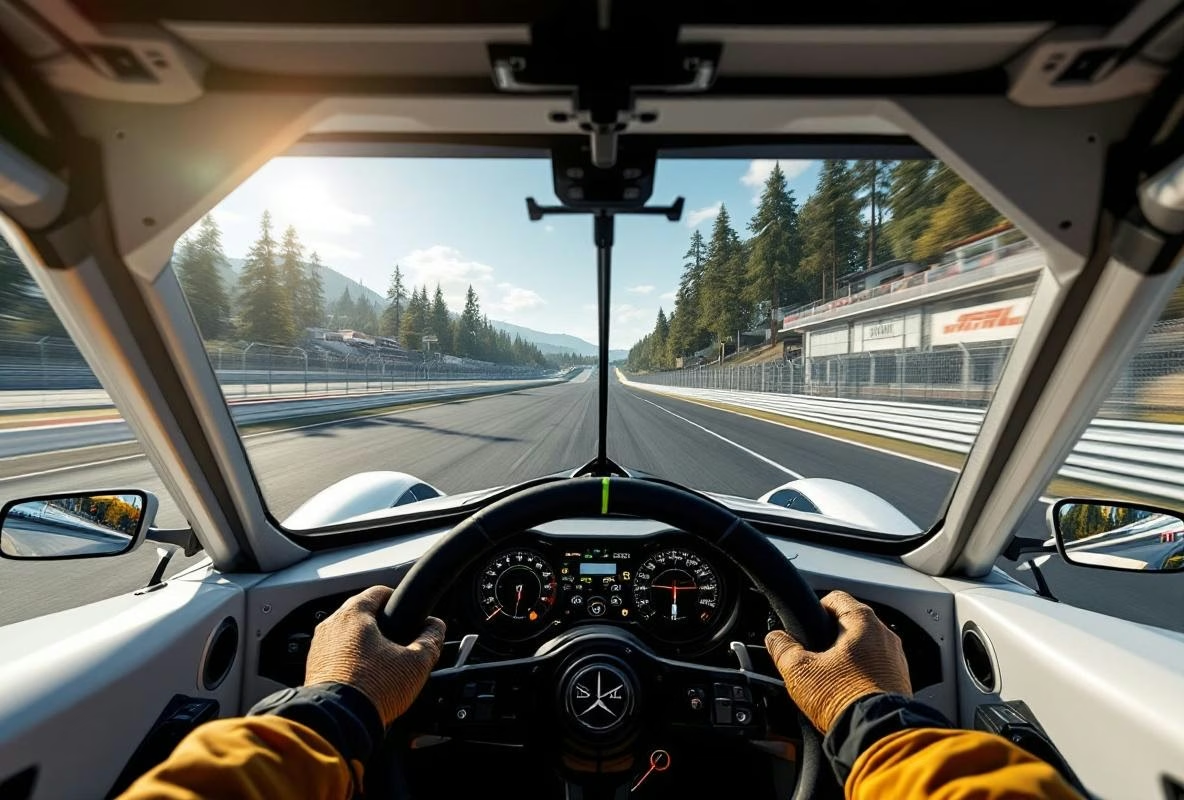
I thought I was done. New PC built, Quest 3 unboxed, link cable plugged in. Fired up iRacing for that first lap. And everything was… a watercolor painting. No edge, just motion smear and a framerate that felt like driving through syrup. Sound familiar?
You’re not alone. The subreddits are full of the same frustration. People buy this headset for the higher resolution, those pancake lenses, and get served a visual soup. Here’s the thing: the Quest 3 can be great for sim racing. But out-of-the-box? Forget it. You have to dig. And I’ve made the mistakes for you.
This isn’t a gentle guide. This is a survival manual. We’re talking about why the default advice is often wrong, which settings actually move the needle, and how to banish that damn blur for good.
The big lie: ‘just crank the resolution’
Everyone says it. ‘Set your Oculus app resolution to 1.5x!’ Or worse, ‘Use the native resolution!’ That’s the first thing that breaks you. You’re pushing pixels your GPU can’t handle, begging for compression artifacts, and ending up with a slideshow. Sharp? No. A mess.
The truth is uglier. Clarity in PCVR with the Quest 3 is a love triangle between resolution, bitrate, and codec. Neglect one, and the whole thing falls apart.
Let’s start with the foundation. The connection.
Cable or air? The choice that dictates everything
You’ve got two paths: Link Cable (USB) or Air Link/Wi-Fi. Opinions are divided. Fanatically.
For pure clarity and consistency? Cable. Full stop. Air Link adds an extra layer of compression and latency you can never fully eliminate, no matter how fancy your router is. But a cable is a pain. It tugs, it has drag. It feels… old.
If you must go wireless (and I get it), this is non-negotiable: You need a dedicated Wi-Fi 6/6E router, in the same room, wired directly to your PC via ethernet. No mesh. No powerline. No shared household network. Otherwise, don’t bother.
But the cable is king. For now.
The holy trinity: Oculus App, Oculus Debug Tool, Oculus Tray Tool
This is where the magic (or the misery) happens. Three tools. One goal.
1. Oculus App (Windows): Your main dashboard. Go to Settings > General and set OpenXR Runtime to Oculus. This is step one. Many sims use OpenXR. If this is set to SteamVR, you’re adding a performance-sapping translation layer.
2. Oculus Debug Tool (ODT): This is the hidden control room. Find it in C:\Program Files\Oculus\Support\oculus-diagnostics. Run it as administrator BEFORE you start your headset.
This is where you make the big calls:
- Encode Resolution Width: This is your main lever. Default is 0 (auto). Set it manually. For an RTX 4070 or better? Try 4128. For a 3080/4070 Ti? 3664. Lower? Start at 3500. This is NOT the render resolution. It’s how much data you send to the headset before it gets compressed. Higher = sharper, but more demanding.
- Bitrate: The king. For Link Cable, set
Encode Bitrateto 500 or 650. Yes, 650. The default 200 is a joke. This is the megabits per second sent to your headset. More data, less compression, less blur. But don’t go above 700 for H.264, or it’ll crash. - Codec: H.264 or HEVC (H.265)? For sim racing? H.264. Always. HEVC looks better on paper, but it adds latency. And latency in a race car is nausea. H.264 is faster, more consistent. Use it.
- Link Sharpening: ON. Always on. This is free clarity.
Save these settings as a preset. Call it ‘Sim Racing Sharp’.
3. Oculus Tray Tool (OTT): Download this. It’s essential. This lets you set supersampling, ASW (Asynchronous Spacewarp), and game-specific profiles. Make a profile for each sim. It will save you hours.
The sim itself: where rubber meets road
You do all that work, boot your sim, and it’s still not right. That’s because every sim has its own, stubborn way of doing things.
iRacing: The VR king, but also a diva.
- In graphics settings: Set
Sharpeningto 400%. Seriously. Cockpit Mirrorsto LOW or OFF. They’re performance vampires.- Don’t use
Dynamic LOD. Set a fixedPixels Per Display(PPD). Start at 120 and work up until your framerate stutters. - Shadows? Medium. Keep it real.
Assetto Corsa Competizione: The challenger. Notorious.
- You have to compromise here.
Temporal Upsampling? OFF. It makes everything soft. Resolution Scaleat 100%. Not lower.EffectsandPost Processingare the big culprits. Set them low.- Use the
VR Epicpreset as a base and then scale back. It’s counter-intuitive, but it works.
Automobilista 2 & rFactor 2: The unpredictable ones.
- Both have great VR implementation, but AMS2 is far more forgiving. In AMS2, enable the
Sharpening Filter. - In rF2, focus on
MSAAoverPost-Process AA. MSAA is more expensive, but cleaner for moving images.
Project Cars 2/3 & F1 23: The easy ones.
- These have solid VR modes. Use the in-sim VR graphics presets and adjust the
Render Resolutioninside the sim, not just the Oculus app.
The PC: the uncomfortable talk
You can’t expect a Quest 3 to run smoothly on a PC that just barely handled a Quest 2. That extra resolution has to come from somewhere.
- GPU: This is your most important part. An RTX 4070 / RX 7800 XT is the starting point for consistent 90 fps with good details. A 4090 is the dream. A 3080/6800 XT can do it, but with concessions.
- CPU: Sims are often CPU-bound. A Ryzen 7 5800X3D or Intel i7 13700K is gold. That extra cache or clock speed keeps frametimes tight.
- RAM: 32GB. 16GB is cutting it close when Windows, Oculus, and a sim are all fighting for space.
It’s expensive. I know.
The last 10%: small tweaks, big impact
- Lens spacing: Dial in the IPD perfectly. A millimeter makes a difference.
- Headset position: Shift the headset slightly higher or lower on your face. The ‘sweet spot’ is small, but key.
- In-headset bitrate: On the Quest 3 itself, go to
Settings>System>Developerand adjustDistortion Curvaturesettings (note: this setting may affect visual quality but is not directly related to bitrate). - SteamVR: Avoid it where possible. Use OpenXR. If a sim forces it (like Assetto Corsa via Content Manager), set the
SteamVR resolutionto 100%, not ‘automatic’.
My hot take: stop maxing everything out
That’s it. The biggest mistake. You want everything on Ultra. Shadows, reflections, crowds, grass.
Don’t.
Aim for clarity and a smooth 90 fps, not photorealistic trees in the distance. In the cockpit, at 120 mph, you don’t see that grass. But blurry barriers or a stuttering apex? You feel those. They cost you time. And your lunch.
Start with a medium preset. Lock your fps to 90. Then increase one setting at a time (resolution, or textures, or sharpness) until you see the drop. Then step back one.
It’s a process. An annoying, iterative, time-consuming process. But when it clicks? When you dive through Eau Rouge and see every bump in the tarmac without a hint of smear?
That’s worth it. Honestly.
Now go drive. And stop changing everything.