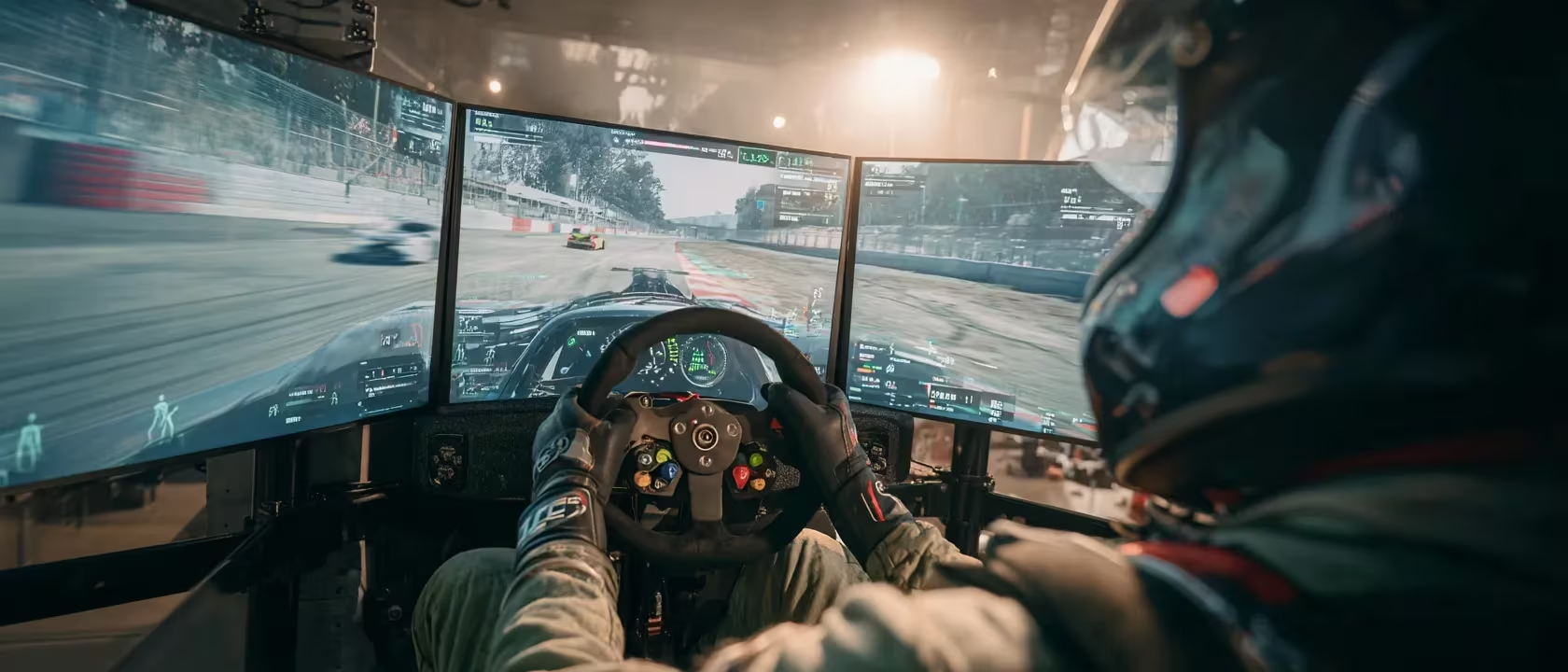
Every sim racer knows the obsession with force feedback curves and pedal mods, but one setting still obscures free lap time: a correct Field of View. Many drivers instinctively choose a wide FOV because it “feels” faster. In reality, you’re sabotaging your braking points, car placement and confidence. With an accurately set FOV you often gain 2-3 seconds per lap, without changing your hardware or setup.
What is Field of View actually?
Field of View (FOV) is the viewing angle that your monitor or triple-screen setup occupies in your field of vision. The value determines how large objects appear in the sim. Too wide a FOV creates a fish-eye effect: objects seem farther away and your brain interprets speed and distance incorrectly. As a result, you brake too late or too early, miss apexes and have to guess in wheel-to-wheel battles.
Think of your screen as a window to the virtual track, not as a wide-angle lens. You want that window to have the same geometry as your actual viewing angle.
Why a correct FOV delivers immediate pace
1. Consistent braking points
A correct FOV ensures that brake boards, apex cones and track limits look like they do in real life. Your brain can estimate distance without compensating for distortion. Result: the same brake pressure on exactly the same board every lap.
2. More precise car placement
When the scale is correct you see exactly where your wheels are relative to kerbs and track limits. You steer more on instinct, dare to go closer to the apex and can defend without fear of contact.
3. Less eye strain and motion sickness
A wide FOV forces your eyes to constantly recalibrate. Correct your FOV and the visual information feels calmer and more natural. You can drive longer stints without headaches or nausea and stay sharper in the final phase of a race.
How do you calculate the correct FOV?
The formula is simple: FOV = 2 × arctan(screen width ÷ (2 × viewing distance)). So you only need the width of your screen and the distance from your eyes to the center. But nobody wants to sit with a calculator.
Therefore use our interactive FOV calculator. Enter your screen size, aspect ratio and viewing distance and you’ll immediately get the correct horizontal or vertical FOV for your sim. The tool supports single, ultrawide and triple monitor setups and automatically converts between hFOV and vFOV.
hFOV versus vFOV
- hFOV (horizontal FOV) is used by iRacing, Project CARS and rFactor 2, among others.
- vFOV (vertical FOV) is found in Assetto Corsa (Competizione), RaceRoom and the F1 games.
With a 16:9 screen, 60° vFOV gives approximately 94° hFOV. Therefore always have the calculator show both values and check which one your sim needs.
Step-by-step setting your FOV
- Measure your setup Note screen size (inches), aspect ratio and viewing distance from your eyes. For triple screens also add bezel width and angle.
- Use the calculator Enter the measurements and note the recommended FOV.
- Apply it in-game
- iRacing: Options → Graphics → Field of view when driving (enter hFOV).
- Assetto Corsa / ACC: Pause → View Settings → FOV (enter vFOV).
- rFactor 2: Options → Display → Vertical FOV.
- EA Sports F1-series: Camera settings → FOV slider. Adjust your seating position if necessary so the dash and mirrors stay logically in view.
- Optimize your physical setup Place the monitor as close as possible to your wheelbase and at eye level. Most pros sit 50-65 cm from the screen; closer means a larger FOV without distortion.
Guidelines for popular setups
Based on 60 cm viewing distance.
| Setup | Expected FOV | Feels |
|---|---|---|
| 24” single monitor | 42°-45° hFOV | Narrow, requires attention to mirrors |
| 27” single monitor | 55°-60° hFOV | Ideal for starters |
| 32” single monitor | 60°-65° hFOV | Natural view |
| 49” 32:9 ultrawide | 105°-110° hFOV | Comparable to two screens |
| Triple 27” | 175°-180° combined | Aligns with human peripheral vision |
Triple users must place monitors at the same angle and height to prevent warping. Use a laser or level if necessary to set the three screens exactly equal.
What if the correct FOV feels too zoomed in?
That feeling is normal. If you’ve driven at 90° for years and now go to 55°, it feels like you’re driving slowly and missing the apex. Give yourself 5-10 sessions to adjust. Many drivers initially choose a compromise:
- Start with 5-10° above the calculated value.
- Lower the FOV by 2-3° every couple of sessions.
- Use virtual mirrors or simple head-tracking for situational awareness.
- Take snapshots of your seat position so you sit identically each session.
If it feels “weird” you’re probably closer to reality than ever. Within two weeks the new perspective feels natural and your old replays suddenly look out of proportion.
Common problems and solutions
- I can’t see my mirrors on a single screen Activate the virtual mirror overlay or make a small compromise of 5° wider. On triple screens the physical mirrors should be visible.
- Everything feels too slow Your old FOV exaggerated speed. Once your brain is used to it you’ll notice you can actually brake later and harder.
- Warping on triple screens Check that your eyes are exactly at the same height as the screen center and verify the angle between the outer screens.
Why you should start today
A correct Field of View is the most important free performance upgrade you can make in sim racing:
✓ 2-3 seconds faster lap times ✓ Better braking points and car placement ✓ Less eye strain and motion sickness ✓ More confidence in wheel-to-wheel battles
Use the MySimRig FOV calculator, set the value directly and commit to at least ten sessions. Once your lap times and consistency shoot up, you’ll never want to go back to the old setting.
Good luck on the circuit! 🏁